What are the advantages using Selenium as testing tool?

Tuesday, May 3, 2011

If QA Tester would compare Selenium with HP QTP or Micro Focus SilkTest, 
QA Engineer would easily notice tremendous cost savings for Selenium. In 
contrast to expensive SilkTest license or QTP license, Selenium automation 
tool is absolutely free. It means that with almost no investment in purchasing 
tools, QA Team could easily build the state of the art test automation infrastructure. 
Selenium allows developing and executing test cases in various programming languages 
including .NET, Java, Perl, RubyPython, PHP and even HTML. This is a great Selenium 
advantage, most likely your software developers already know how to develop and maintain
 C# or Java code, so they transfer coding techniques and best practices to QA team. 
 Selenium allows simple and powerful DOM-level testing and in the same time could be
 used for testing in the traditional waterfall or modern Agile environments. Selenium 
 would be definitely a great fit for the continuous integration tools Jenkins, 
 Hudson, CruiseControl, because it could be installed on the server testing box, 
 and controlled remotely from continuous integration build.

What are the main components of Selenium testing tools?

Selenium IDE, Selenium RC and Selenium Grid


Selenium IDE is an integrated development environment for Selenium scripts. It is implemented 
as a Firefox extension, and allows you to record, edit, and debug tests. Selenium IDE 
includes the entire Selenium Core, allowing you to easily and quickly record and play back 
tests in the actual environment that they will run. Selenium IDE is not only recording tool: 
it is a complete IDE. You can choose to use its recording capability, or you may edit your
 scripts by hand. With Auto complete support and the ability to move commands around quickly, 
 Selenium IDE is the ideal environment for creating Selenium tests no matter what style of tests you prefer.

Selenium Remote Control (RC) is a test tool that allows you to write automated web application UI
 tests in any programming language against any HTTP website using any mainstream JavaScript-enabled browser.

Selenium RC comes in two parts.

A server which automatically launches and kills browsers, and acts as a HTTP proxy for web requests from them.
Client libraries for your favorite computer language.
The RC server also bundles Selenium Core, and automatically loads it into the browser.

What is Selenium?

Selenium is a suite of tools for browser automation. It is composed of "IDE", a recording 
and playback mechanism, "WebDriver" and "RC" which provide APIs for browser automation in
a wide variety of languages, and "Grid", which allows many tests using the APIs to be run 
in parallel. It works with most browsers, including Firefox, Internet Explorer, Google Chrome,
Safari and Opera.

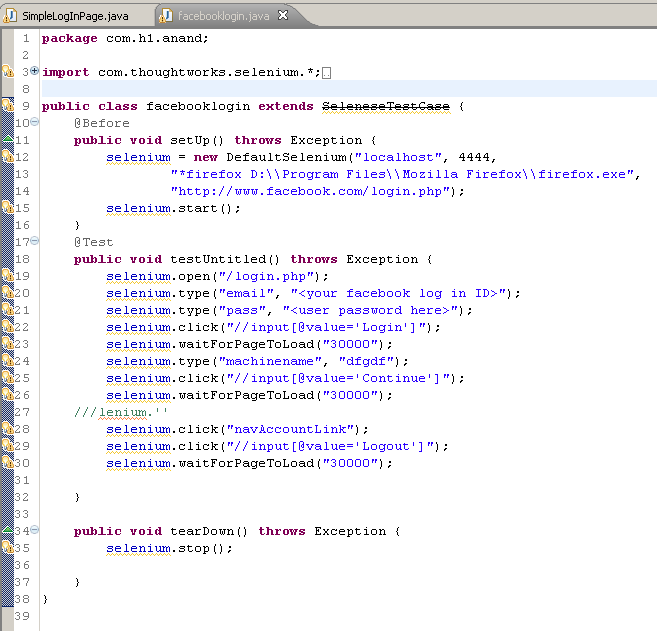
Program to log in to Facebook by using Selenium IDE

Here is the code to log in to the Facebook by using Selenium RC.


Java Code:


Note :In above program replace with your facebook email id and replace with password

Sample Gmail Log in Page

Monday, May 2, 2011

Here is the code to log in to the Gmail by using Selenium IDE.

Package Structure:


Java File:


NOTE: In this Program I have hard coded user name and Password. We can pass the values run time also,

download the Java file

About XPath

Sunday, May 1, 2011

We will use the following XML document in the examples below.


Selecting Nodes

XPath uses path expressions to select nodes in an XML document. The node is
selected by following a path or steps. The most useful path expressions are listed 
below:


In the table below we have listed some path expressions and the result of the expressions:


Predicates

Predicates are used to find a specific node or a node that contains a specific value.
Predicates are always embedded in square brackets.

In the table below we have listed some path expressions with predicates and the result of the expressions:


Selecting Unknown Nodes

XPath wildcards can be used to select unknown XML elements.


In the table below we have listed some path expressions and the result of the expressions:


Selecting Several Paths

By using the | operator in an XPath expression you can select several paths.
In the table below we have listed some path expressions and the result of the expressions:

More about Click Command

Saturday, April 30, 2011

The golden rule of web application testing states that “You can find a number of bugs by simply clicking randomly on various places.” This is especially true for User Interface bugs. If you are using Selenium or Selenium-RC for automating your application’s User Interface tests, it is important to know how the “Selenium.click()” command works in order to simulate user clicks.

While it’s one of the lesser-advertised features of Selenium, it’s a blessing in disguise for testing application behavior for various UI elements without needing any manual intervention. For instance, we recently tested a JSP form with a few dozen dropdown lists (single and multi-select), checkboxes, and a plethora of radio buttons. Clicking each UI control manually was a pain in the hand. In contrast, simulating these clicks using Selenium not only saved crucial manual testing effort, it helped uncover a number of important bugs in the application as well.

How to use the Click command?

To put it in simple words, the click command emulates a click operation for a link, button, checkbox or radio button. It takes a locator (an identifier for which HTML element the command refers to) as an argument.

Example – The following command invocation simulates a click on a button element named btnSI


Browser Support

The Selenium click command works in the following browsers


Language Support

The Selenium click command works in the following languages.


Challenges and Workarounds

The Selenium click command offers basic locator click functionality. Though it has several limitations, these can be overcome using the following workarounds.

How to click on specific coordinates?
Click command is only capable of clicking on a specific element locator. It can’t click on an element using the coordinates of the mouse event relative to the element locator. Example


Moreover, it can be used to have the same effect as click command by specifying the coordinates as “0,0”. This is especially true when using JavaScript frameworks such as extJS and GWT where click command doesn’t work very well because it does not trigger the mouseUp event.

Does issuing the click command fire the onblur event?
No, it doesn’t. That’s the reason why you should use the fireEvent command in such cases. Example


HTML Code
Let’s consider the following example as a reference point to understand how the Selenium click command works.


Example Test Cases

Let’s consider the following test cases to understand how the Selenium click command works in various languages. In each of the code snippets provided below, we first open the application root, set the value “selenium rc” into the field named ‘q’, invoke the click command on myButton and then wait for 30 seconds for the page to load.

Java Code


Python Code
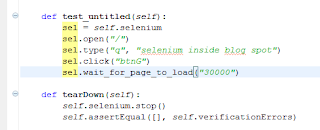


Selenium IDE HTML Suite Test


Using Selectors with Click Command

The Click command can also be used in conjunction with the following selectors.

1. css=

The CSS selector is often used with Selenium click command to uniquely identify an object or element on a web page. For example


The CSS locator is especially handy as an alternative to XPath locator which works painfully slow with IE.

2. name=


As the name itself suggests, the name selector is used to click the first element with the specified @name attribute. For example

3. id=

This allows click on an element with the specified @id attribute. For example


4. link=

This allows clicking on a link element which contains text matching the specified pattern. For example


5. xpath=

This allows clicking on an element using an XPath expression. For example


We hope that you find this write-up informational and it helps shorten your Selenium learning curve.


Copyright © 2011 Mixx Blogger Template - Blogger Templates by BloggerReflex

Sponsored by: Trucks | SUV | Cheap Concert Tickets